Large media files (video, PowerPoint with Voice etc) can now be uploaded to your Moodle subject page with no file size limit. This has been made possible by UKZN obtaining a licence for a software package called Kaltura.
Kaltura is integrated with Moodle so you don’t have to install anything to make use of it. You can upload Media files, or you use Kaltura’s built-in capabilities (Express Capture webcam, Kaltura Capture presentation and camera) and your media will be automatically transcoded for adaptive playback.
Below are instructional videos to guide you on how to use the capabilities of Kaltura in Moodle
Kaltura Training Videos
Introduction to Kaltura
Repositories in Kaltura
Adding Media in Kaltura
Kaltura Capture
Making Kaltura Videos Downloadable on Moodle
Kaltura Webinar Recording
Training Webinar on Kaltura Capture - by Mr. Kumar Deepak
Instructions for Uploading Media Files to MOODLE via KALTURA
By: Prof. MJ Brooks
ICS recommends downloading a copy of VLC Media Player to reduce video file sizes before you upload them to Moodle. To obtain VLC, click here. Use the Convert/Save function under the Media tab to reduce the size of your video files. For more information, check the UKZN Teaching Online portal page describing How you can use VLC to compress a video to a smaller size.
To upload a media file to your Moodle subject page:
Step 1:
Log into Moodle and go to your subject page.
Step 2:
Select ‘Turn on editing’.
Step 3:
Under your subject content select ‘Add an activity or resource’.
Step 4:
Scroll down to ‘Kaltura video’ and Add.
Step 5:
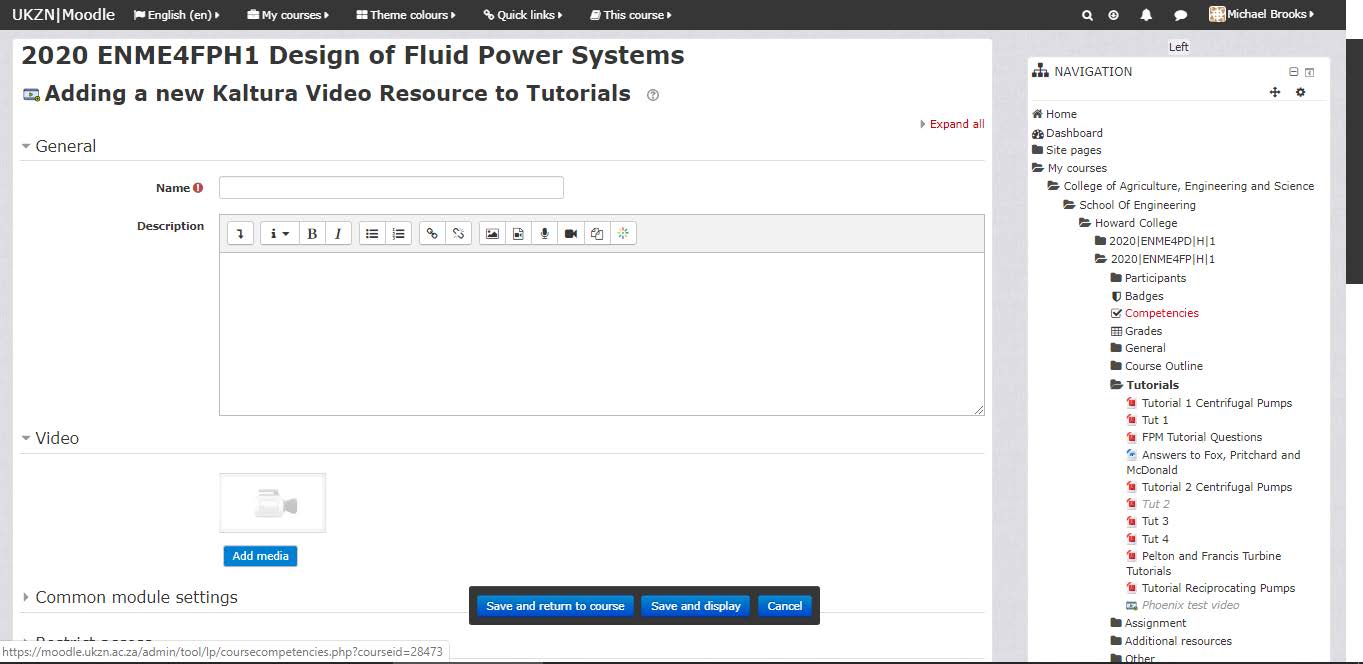
Select ‘Add media’ under the Video section.
Step 6:
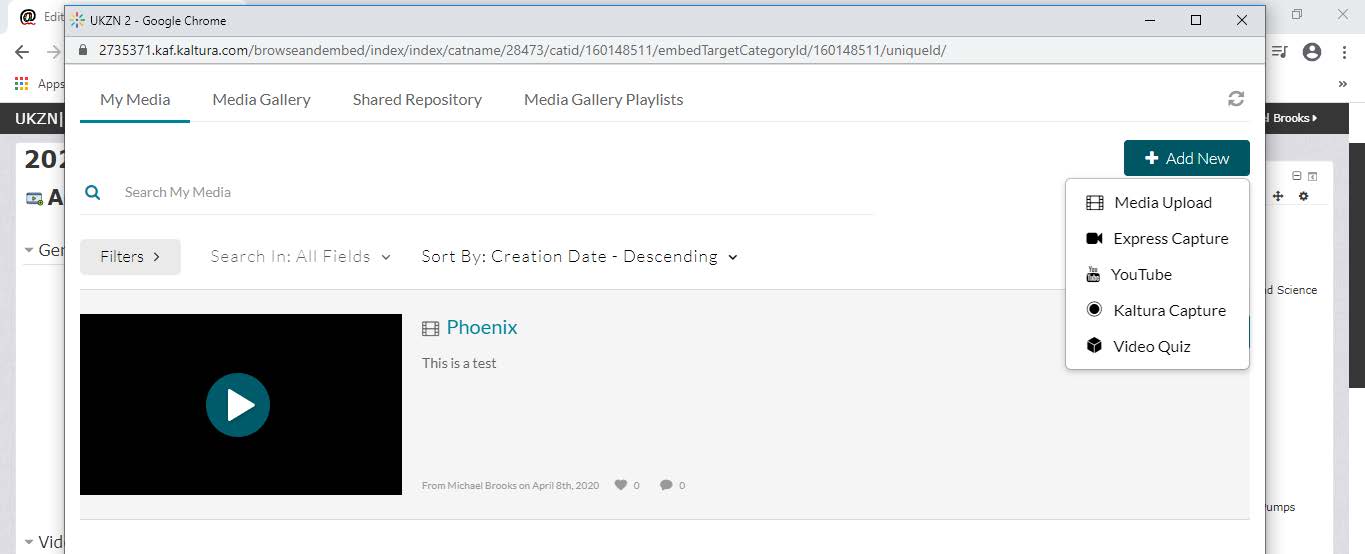
A new window will open up – this is the Kaltura interface.
In the top right corner select “Add New” and select Media Upload, or one of the other Kaltura options.
Next, select “Choose a file to upload” and select the file from your PC drive.
It may take a while for big files to upload…
Step 7:
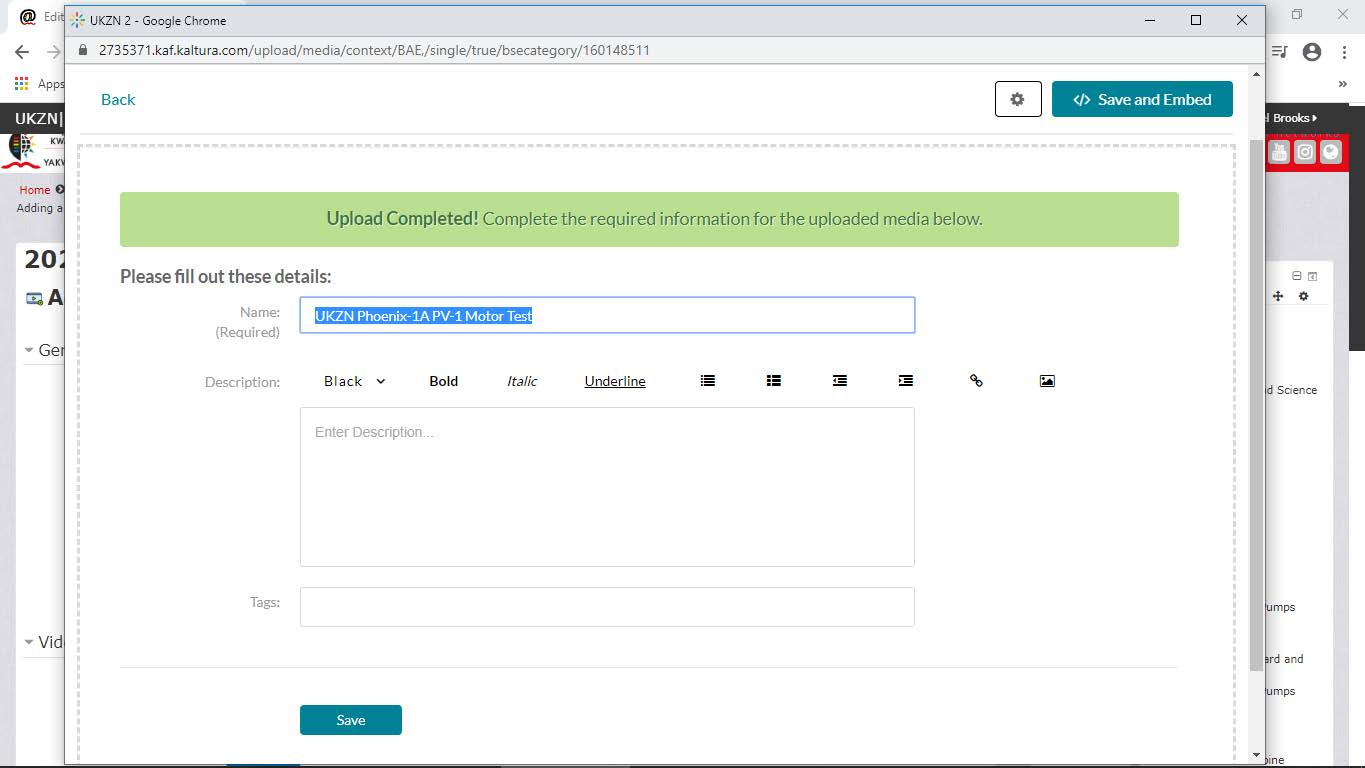
Once your file has been uploaded, select “Save and Embed” in the top right corner.
Step 8:
You will then return to the Moodle page where you should “Save and return to course”.
Step 9:
Turn off editing and your media file should be visible under your Moodle content list.