Skip to content
Quick Links
Quick Links
UKZN Home
Library
Vacancies
Directions
Student Email
Staff Email
Telephone Directory
Tenders
Directory of Experts
X-twitter
Facebook-square
Youtube
Instagram
Rss
University Digital Teaching Portal
Menu
Close
Home
COVID Remote Plan
Events
Teaching Technology Guides
Support Lines
Feedback
Report Broken Links
Close
Home
COVID Remote Plan
Events
Teaching Technology Guides
Support Lines
Feedback
Report Broken Links
Instructional Guide: Adding YouTube Video to Media Gallery
Step 1:
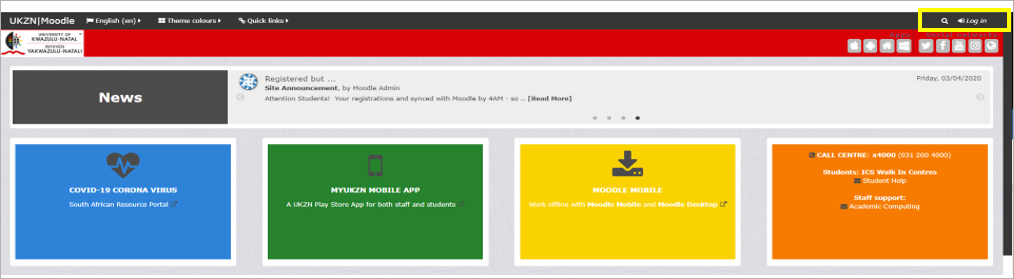
Go to the UKZN Moodle LMS – Learn
Step 2:
Click
Login
(Top Right).
Step 3:
Enter your Username and LAN login password, Click
Log in
.
Step 4:
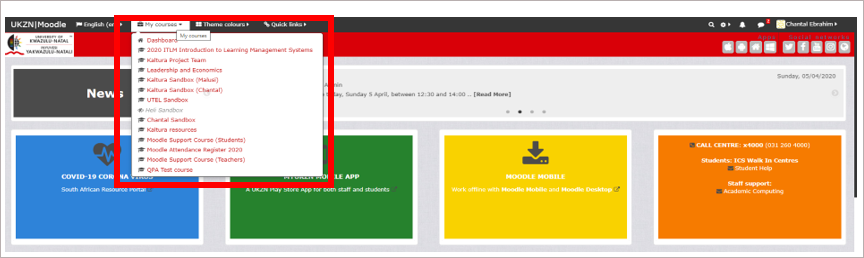
Click
My Courses
(Top Left) Select the Course you wish to add content to.
Step 5:
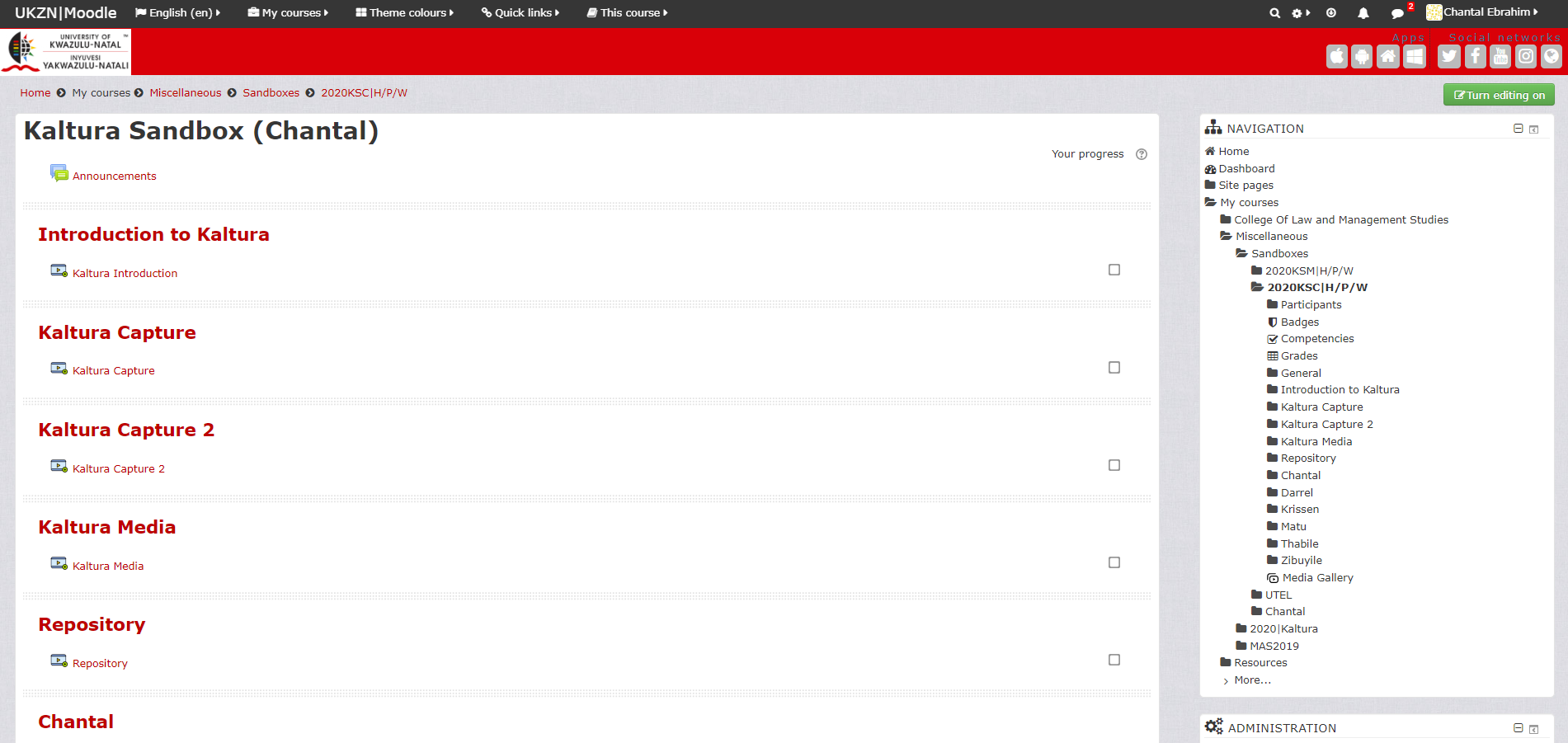
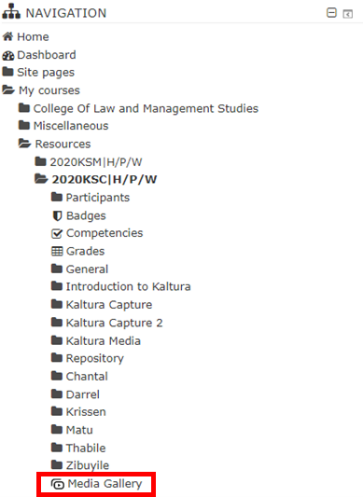
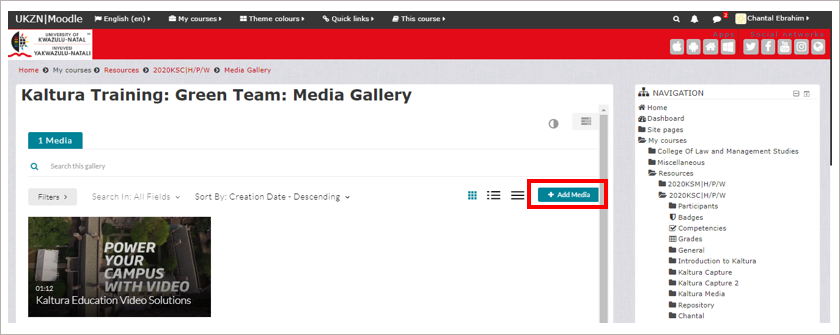
Once in your Course Page, select
Media Gallery
in the Navigation Panel (Right).
Step 6:
Click
Add Media
.
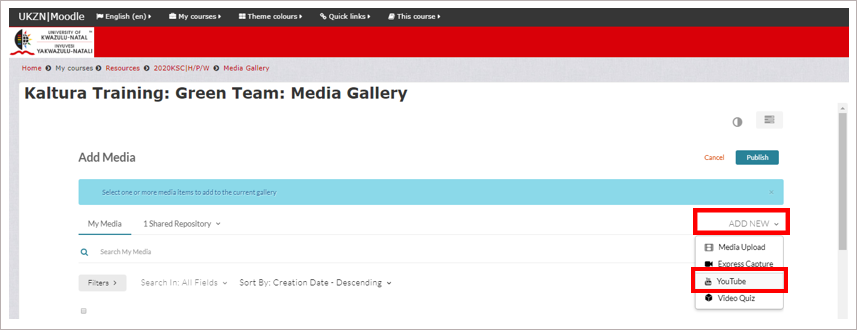
Step 7:
Click Add New and Select
YouTube
.
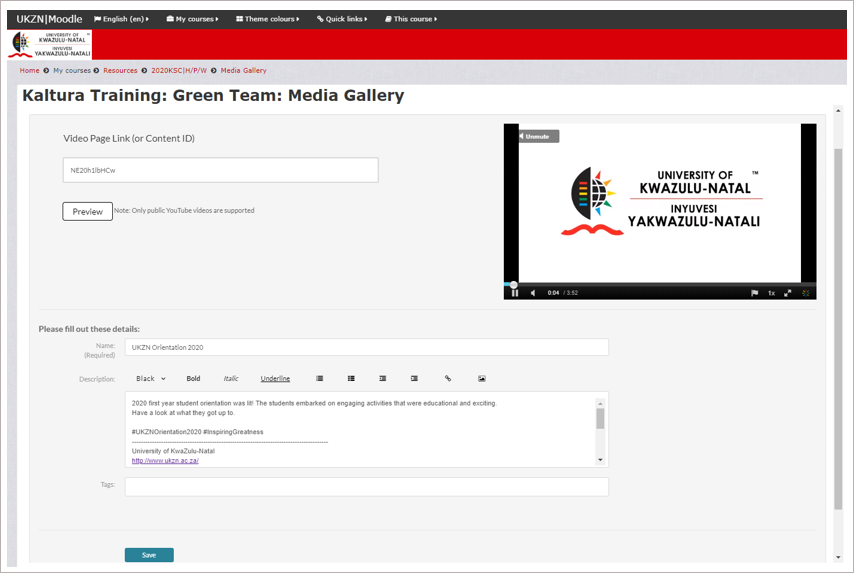
Step 8:
Paste the YouTube link in
Video Page Link
, Click
Preview
to ensure that the correct video has been loaded.
Step 9:
The Name and Description is automatically filled in. You may enter Tags that apply to the video. Click
Save
.
For more information on how to publish media files from “
My Media
” to “
Media Gallery
“, click
here
.
iSiZulu Version »
<
<