Instructional Guide: Zoom Whiteboard and Recording
Overview
The Zoom whiteboard feature will allow you to share a whiteboard that you and other participants (if allowed) can annotate on.
Instructional Guide
Using Zoom Whiteboard and Recording
By:Reginald Govender
Step 1:
Select New meeting.
Step 2:
Select Share.
Step 3:
Select Whiteboard >> Select Optimize for full screen video clip >> Select Share.
Step 4:
Select More >> Select Record on this Computer.
Step 5:
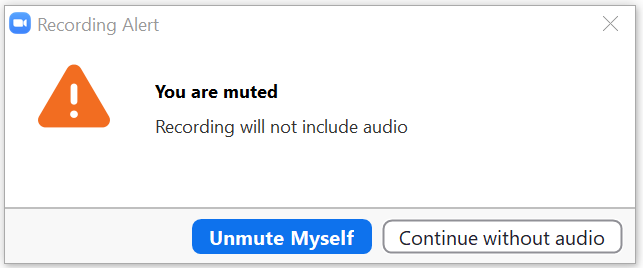
You will then be prompted to Unmute yourself.
Note: this will only pop up if you have you audio muted on start of the Zoom meeting.
Step 6:
At this point, whatever you say and do on the whiteboard, would be recorded. Suggestion: Use the Zoom whiteboard feature on a touch screen device with a stylus.
Step 7:
When done … Select Stop Recording >> Select Stop Share.
Step 8:
Select End meeting >> Select End meeting for All.
Step 9:
Sit back and let Zoom do the rest… at this point Zoom will create the video
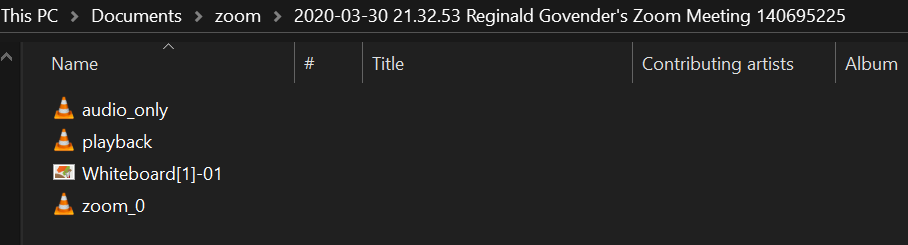
Depending on how you set up Zoom, you should find your recording in your Documents folder.
Four files would be generated, depending on the options that you selected in settings. Zoom_0 will contain the video recording with audio.