Instructional Guide: Learn Gradebook

Overview

The grader report collects items that have been graded from the various parts of Moodle that are assessed, and allows you to view and change them as well as sort them out into categories and calculate totals in various ways. When you add an assessed item in a Moodle course, the gradebook automatically creates space for the grades it will produce and also adds the grades themselves as they are generated, either by the system or by you.

When To Use

The Moodle Gradebook automatically aggregates scores and feedback from AssignmentsActivities, and/or Manual grades from your Moodle course. Students can view their own grades in individualized reports which protect student privacy. Instructors can decide when and how students see the gradebook, or choose to hide the gradebook entirely. Instructors and Teaching Assistants can use the gradebook to manually enter and edit grades (Overriden), import grades from outside sources (such as OWL, iClicker, and Opscan), or export the gradebook to manage it in another software (like Excel). 
Instructional Guide

Accessing the Gradebook

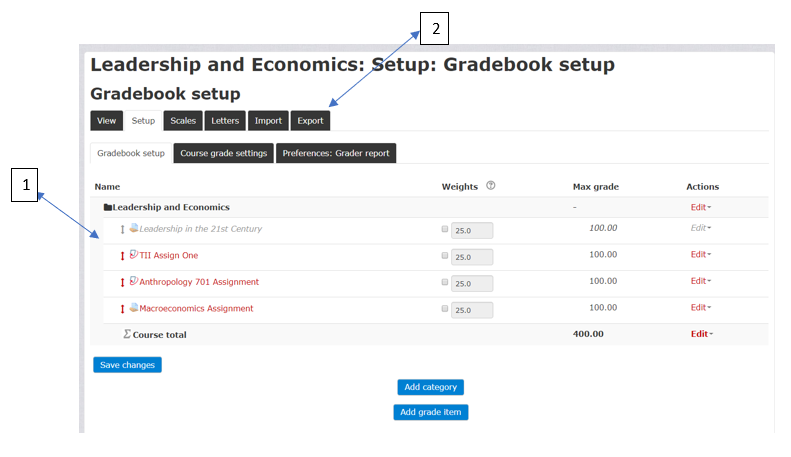
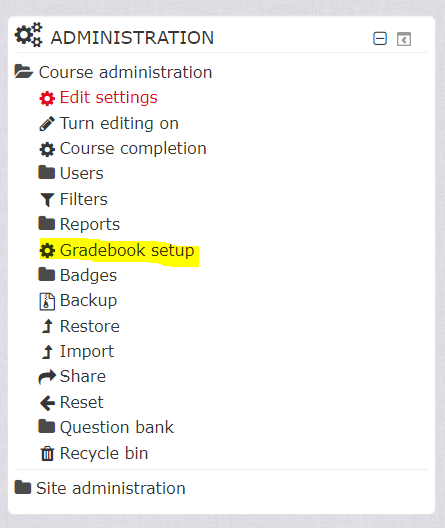
  • To access the Gradebook, login to Moodle by clicking here. Navigate to your course and under the Administration block select Gradebook setup.

  • If there are no activities in the course, number 1 will be empty.
  1. All activities that have marks are located in this area. Please note how Leadership in the 21st Century is in grey, this signifies that the participants will not be able to see their grades for that particular assessment or activity.

  2. There is an option to export and download the grades from the activities. They may be exported by clicking on the Export tab, selecting the required format (plain text file or a spreadsheet), then select which  activities’ grades require exporting.

Exporting Grades from the Gradebook

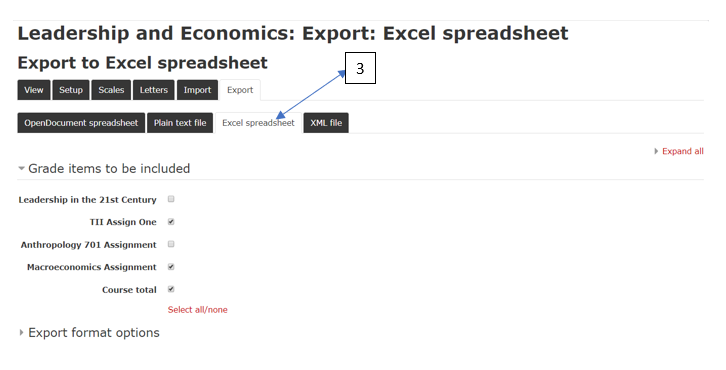
  • Select the Export Tab.
  • Select the format of the file the marks will be downloaded to. In this example (label 3 in image above),  an Excel spreadsheet has been selected.

Grade items to be included

Select the activities whose grades are to be exported. In the example above, TII Assign one and Macroeconomics Assignment have been selected.


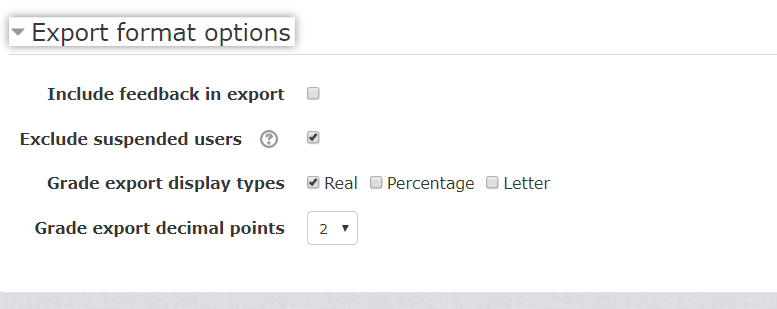
Export format options

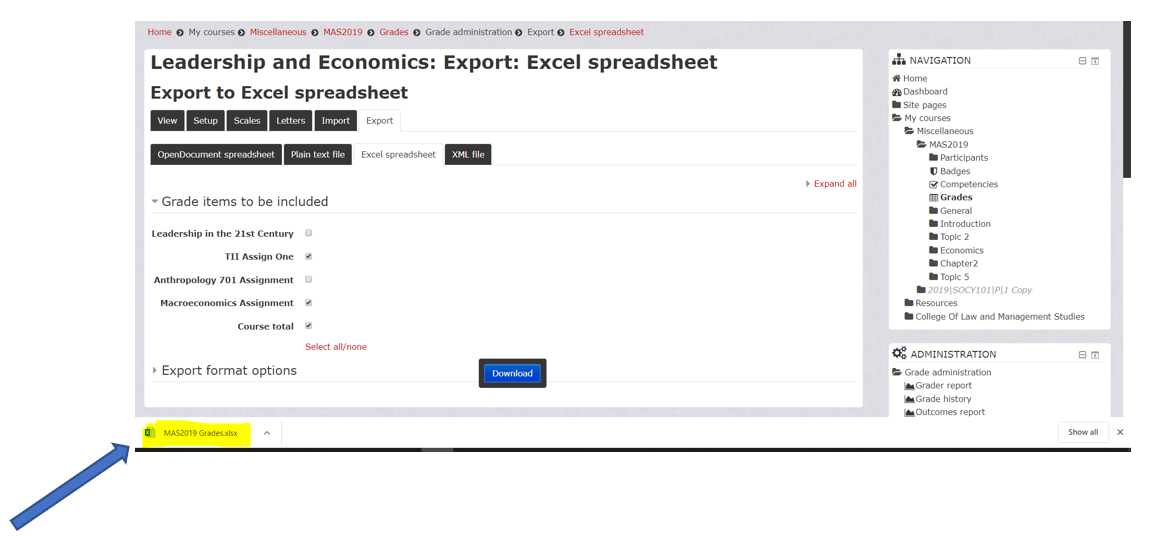
  • Complete the settings as required Then click on Download.
  • The excel file may be found in the bottom left-hand corner of the browser screen and under Downloads folder in your computer.

iSiZulu Version »