Instructional Guide: Learn Discussion Forum

Overview

The forum activity module enables participants to have asynchronous discussions i.e. discussions that take place over an extended period of time. There are several forum types to choose from, such as a standard forum where anyone can start a new discussion at any time; a forum where each student can post exactly one discussion; or a question and answer forum where students must first post before being able to view other students’ posts. A teacher can allow files to be attached to forum posts. Attached images are displayed in the forum post. Forum posts can be rated by teachers or students (peer evaluation). Ratings can be aggregated to form a final grade which is recorded in the gradebook.

When To Use

This is an activity on Moodle that lecturers can activate for students’ non-real time engagement. Lecturers can post questions for students to reply at their own time, and students can also post individual questions that can be responded to by the lecturer or their peers.

Scenarios

  • A social space for students to get to know each other
  • For course announcements (using a news forum with forced subscription)
  • For discussing course content or reading materials
  • A one-on-one support area for private student-teacher communications (using a forum with separate groups and with one student per group)
  • For extension activities, for example ‘brain teasers’ for students to ponder and suggest solutions to.


Which Forum Do I Need?

In the (default) Standard forum for general use, students will see an introduction text in a separate space above the list of discussions. Students see a button to start a new discussion (thread).
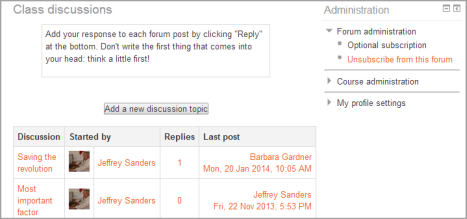
Student view of "Standard forum" type


In a Single, simple discussion the teacher posts a question and students are only able to reply. Students cannot start a new topic of discussion. This is useful if you wish to keep a discussion focused.
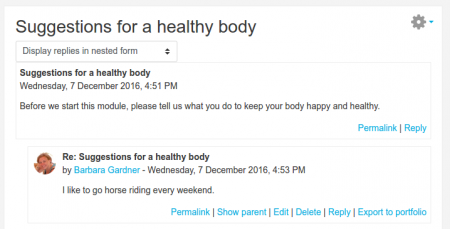
Student view of "A single simple discussion" forum type


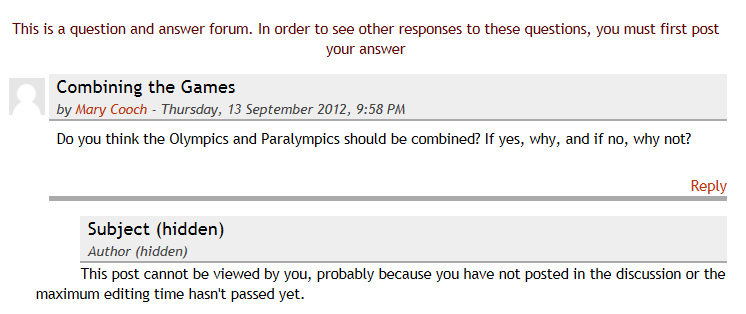
The Question and Answer forum is best used when you have a particular question that you wish to have answered. The teacher posts a question and students respond with possible answers. By default, a Q and A forum requires students to post once before viewing other students’ postings.
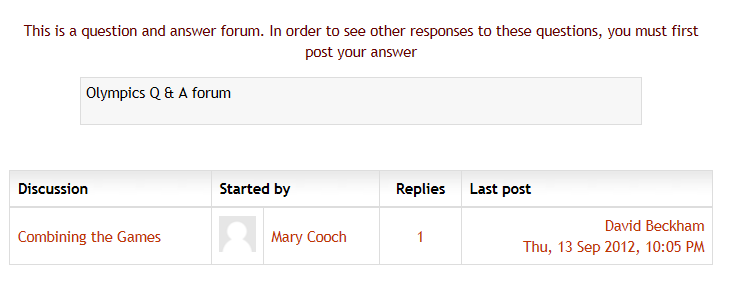
Initial view of Q&A forum
Students cannot see posts until they post


The Standard forum displayed like a blog works like the standard forum for general use, but the first post of each discussion is displayed (as in a blog) so that users can read it and then choose to respond by clicking the “Discuss this topic” button bottom right of the post.
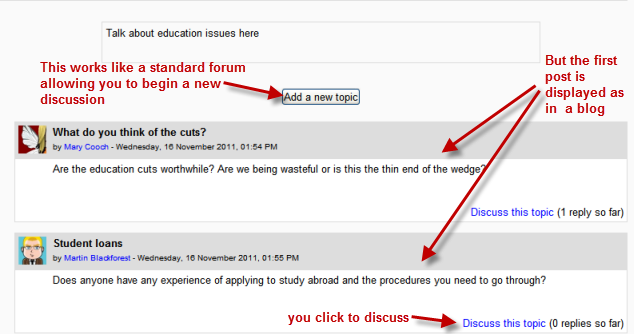
Blog-like forum

Instructional Guide

Creating a Discussion Forum

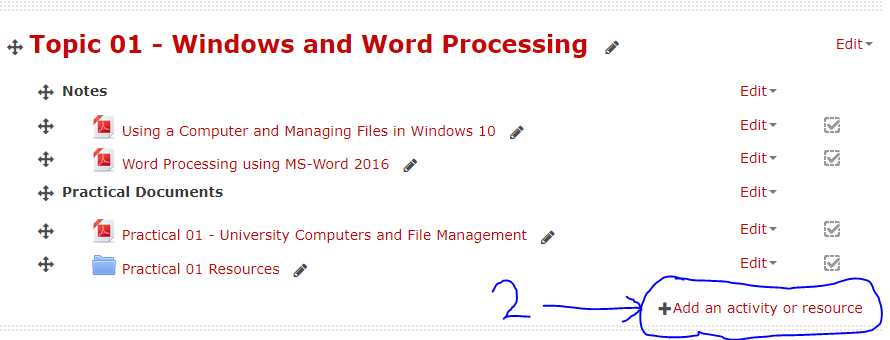
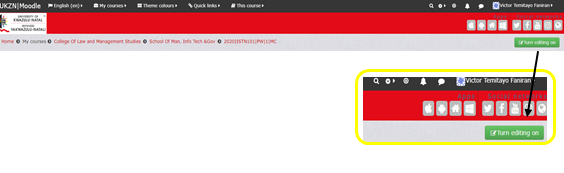
  • A lecturer can add a Forum activity in a course when editing is turned on (see image below) by clicking an ‘Add an activity or resource’ link (or, if not present, the “Add an activity” drop down menu) and selecting Forum.

Steps:

  • Log in to Moodle by clicking here.
  • From the “My courses” tab, select the course you desire to add a discussion forum to.
  • Click “Turn editing on” located at the top right-hand corner of the screen (See image above).
  • Click on “Add an activity or resource” (See item labelled 2).
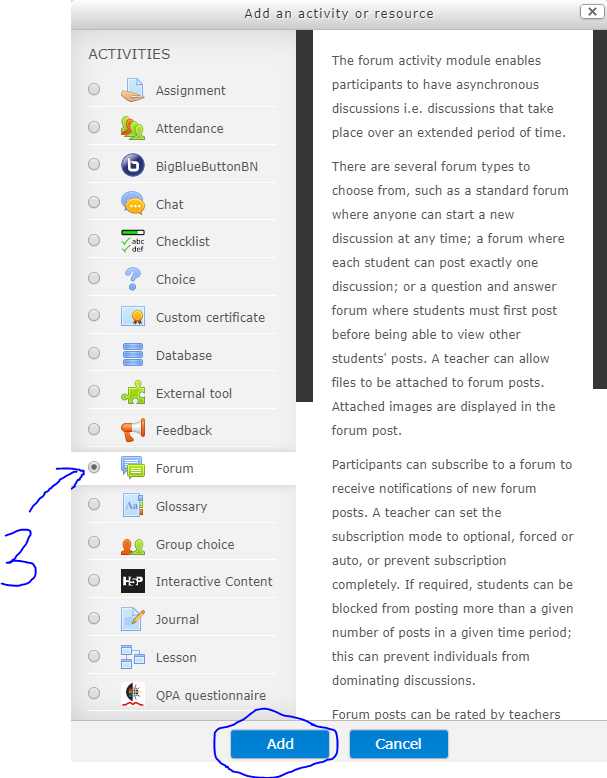
  • Select “Forum” (See item labelled 3) and click “Add”.


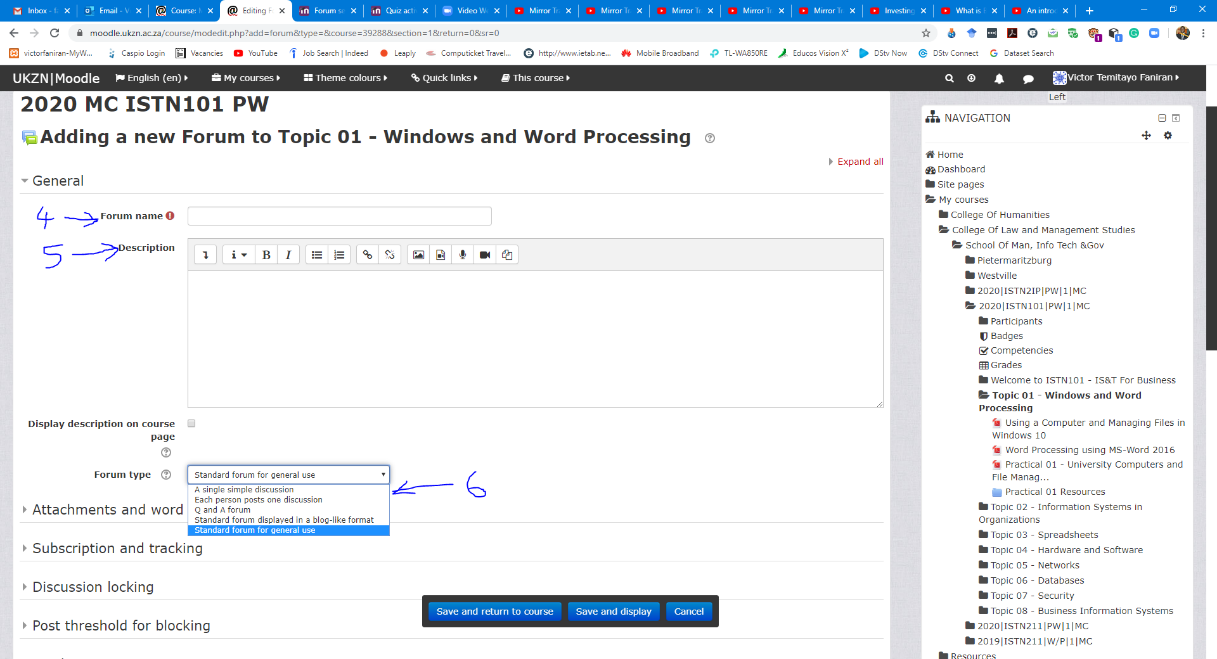
  • Fill in the Forum name (See item labelled 4).
  • Fill in the description of the forum (See item labelled 5).
  • Select the Forum type (See item labelled 6).

Customisable Settings

  • Attachments and Word count: The maximum file size that may be attached to a forum post depends on the Moodle site settings. The teacher may want a smaller size limit for the forum and should bear in mind the download speeds of the course participants. If “Display word count” is enabled, then the number of words in forum posts will be shown at the bottom of each post.
  • Forum subscriptions:  When a participant is subscribed to a forum it means that they will receive notification (depending on the user’s messaging settings preferences) of each new posting. By default, forum notifications are sent about 30 minutes after the post was saved. Participants can usually choose whether or not they want to be subscribed to each forum. However, the teacher can choose to force subscription on a particular forum then all course users will be subscribed automatically, even those that enrol at a later time. For more information on Forum subscriptions, please click here.
  • Discussion locking: Discussions may be automatically locked after a specified time has elapsed since the last reply. Users with the capability to reply to locked discussions can unlock a discussion by replying to it.
  • Blocking posts: By default, course participants can post any number of messages to forums. If you want to restrict this number and block them after a certain number or time, the expandable section ‘Post threshold for blocking’ allows you to specify your choice. You can also send a warning that they are about to be blocked.
  • Grade and Ratings:  Forums use a rating scale which you can customise. You can also set a “Grade to pass” which may be connected with Activity completion and Restrict access such that a student will not be able to access a follow-up activity until they have obtained a required grade (rating) in the forum.

By default, only teachers can rate forum posts, though students can be given permission to do so if desired (see forum permissions below). This is a useful tool for giving students participation grades. Any ratings given in the forum are recorded in the gradebook.

You can set an ‘aggregate type’ to decide how all the ratings given to posts in a forum are combined to form the final grade (for each post and for the whole forum activity). See Ratings for an explanation of aggregate types and which one is best for you.


Other Settings

Using Groups with Forums

For ‘Group mode’ in the expandable Common module settings section allows you to specify how your forum works with groups. (Note that Single simple discussions cannot be used with groups as this feature is not implemented. Use a standard forum instead). For more information about using groups with forums, see the documentation Using Forum

The group mode setting has three options:

Site settings

A description for the Forum may or may not be obligatory depending on Site administration > Plugins > Activity modules > Common settings.

The forum module has additional settings which may be changed by an administrator in Administration > Site administration > Plugins > Activity modules > Forum and, for ‘Maximum time to edit posts’, in Administration > Site administration > Security > Site policies.

Subscription mode

Administrators can select the default subscription mode for new forums from a drop-down menu.

Timed forum posts

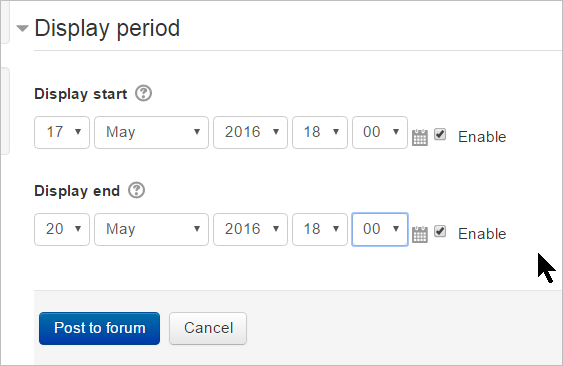
Teachers can set a display period of a date and time for the forum post to appear.

  • After all desired settings have been selected, click “Save and return to course”.
iSiZulu Version »