Instructional Guide: Zoom Webinar

Overview

Zoom Video Webinar allows you to broadcast a Zoom meeting to up to 10,000 view-only attendees, depending on the size of your webinar license. Webinar licenses start at a capacity of 100 participants and scale up to 10,000 participants. As the host or a panelist, you can share your screen, video and audio in a webinar and attendees can use the chat or question and answer options to interact with the host and panelists.

Webinars can require preregistration, with the option for the host to add custom registration questions, or registration can be turned off for attendees to join by simply clicking a link at the time of the webinar. Webinars can be held once, can reoccur in a series, or can be the same session held multiple times.

Instructional Guide

Inviting Attendees and Panelists

Panelists are full participants in the meeting. They can view and send video, screen share, annotate, etc. You can have 100 panelists (including the host) in a Webinar. Please note that panelists will receive a direct email invitation separate from the attendees of the Webinar.

Learn how to invite panelists.

Attendees are view-only participants who can be unmuted if the host chooses. Their view of the webinar is controlled by the host. They can interact with the host and the panelists through the Q&A and the chat.

If the webinar does not require registration, you can copy the join link and share with your attendees.

If the webinar requires registration, the host will need to share the registration link and have the attendees complete the registration form. Once registered, they will receive an email notification with a unique join link.

There are three different ways to invite attendees to register:

  • Copy the registration URL and share via email, your website, etc.
  • Select Copy the invitation to view and copy the invitation created by Zoom to send out to your attendees.
  • Select Email me the invitation to receive a copy of the Zoom invitation that you can then forward to potential attendees.

Starting a Webinar

There are a few ways that you can start your webinar.

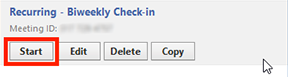
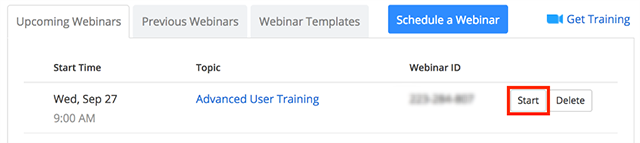
  • Sign in to the Zoom web portal and click Webinars. Find the webinar, and click Start.

In the Zoom client, click on the Meetings tab. Find the webinar, and click Start.

  • If you have added this to your calendar, click on the link displayed on your calendar reminder. Make sure that you are logged into your Zoom account before clicking the link.

Roles in a Webinar

Overview

There are multiple roles available for a webinar: host, cohost, panelist, and attendees. The role that you have in the webinar will be designated by the host.

The host of the webinar is the user who the webinar is scheduled under. They have full permissions to manage the webinar, panelists, and attendees. There can only be one host of a webinar. The host can do things like stop and start the webinar, mute panelists, stop panelists’ video, remove attendees from the webinar, and more.

Co-hosts share many of the controls that hosts have, allowing the co-host to manage the administrative side of the webinar, such as managing attendees or starting/stopping the recording. The host must assign a co-host. Co-hosts cannot start a webinar. If a host needs someone else to be able to start the webinar, they can assign an alternative host.

Panelists are full participants in a webinar. They can view and send video, screen share, annotate, etc. You must be assigned panelist permissions by the webinar host. The host can also disable some features for panelists, including starting video, sharing your screen, and recording. Learn how to add and invite panelists as a webinar host.

Attendees are view-only participants who can be unmuted if the host chooses. Their view of the webinar is controlled by the host. They can interact with the host and the panelists through the Q&A and the chat. Learn about joining a webinar as an attendee.

Prerequisites

Comparison of controls

The following table compares the webinar controls available to the host, co-hosts, panelists and attendees. To learn more about each feature, click the embedded links in the table or see Host and Co-Host Controls in a Meeting.

Features with an asterisk (*) can be disabled by the host.

Participate in Webinar


Host

Co-host

Panelist

Attendee

Join during practice session


(see note)


Start the broadcast


Mute/unmute themselves


Start/stop their own video

✔*


View attendee list


Share screen


Request or give remote control


Chat

✔*

Save chat


Ask questions in Q&A


View All Q&A and respond


Create or edit polls


Start polling


Answer polls


✔*

Assign someone to enter closed captions


Enter closed captions

✔*

✔*


Raise hand


End webinar


Note: Co-hosts cannot be assigned ahead of time. If you would like to designate someone as a co-host, invite them to the webinar as a panelist and then promote them to a co-host. Alternatively, you can assign them as an alternative host. Alternative hosts are able to start or join a practice session.

Manage Participants


Host

Co-host

Panelist

Attendee

Mute or unmute attendees


Stop panelist’s video


Ask a panelist to start video


Spotlight a Video


Promote attendee to panelist


Demote from panelist to attendee


Change attendees’ view


Change who attendees can chat with


Remove attendees


Allow attendees to talk


Assign Co-host Permission


Put panelist on hold


Invite others to join webinar


Record


Host

Co-host

Panelist

Attendee

Record to cloud


Record locally

✔*


Live Stream


Host

Co-host

Panelist

Attendee

Live stream on Facebook


Live stream on Workplace


Live stream on YouTube


Custom live stream


iSiZulu Version »